
Twitch go live notifications for Discord.
Tell your community when a streamer goes live. SourcePing posts a go-live alert with the stream title, category and a preview to the Discord channel you choose, and pings the role you pick.

One alert per stream, not one per reconnect.
Paste a Twitch channel link and SourcePing subscribes to Twitch's own go-live notifications for it, and checks the channel every 10 minutes as a backup. When the stream starts, your channel gets one alert with the title, the category being played and a preview image.
Streams drop and reconnect. A reconnect within 10 minutes counts as the same stream, so your members get one alert, not three. You can also announce when a stream ends, or when the title or category changes during a stream.
Follow your own channel, your community's streamers or your favourite creators. Nothing on Twitch needs to be connected to your account: a channel link is all it needs.
Set up Twitch live alerts in four steps.
Add the bot to your server, then pick the streamer and who should hear about it.
- 01
Add the streamer
Paste the Twitch channel link or name. It works for any public channel, not just your own.
twitch.tv/streamer - 02
Pick events
Goes live, and optionally goes offline, title changes and category changes.
goes live - 03
Choose channels and pings
Post alerts in your live channel and ping the role your fans picked.
#live-now@Live Alerts - 04
Keep it tidy
Quiet hours and cooldowns stop late-night or repeated alerts when you want them to.
quiet hourscooldown
Go-live alerts your community will notice.
Everything a streamer, a team or a fan server needs to share streams in Discord.
Go-live alerts
One alert when the stream starts, with the title, the category and a preview image.
No duplicate alerts
Short reconnects count as the same stream, so a dropped connection doesn't trigger a second alert.
Title and category changes
Optionally announce when the streamer changes the title or switches game during a stream.
Stream ended
Optionally post when the stream goes offline, so nobody joins an empty channel.
Role pings
Ping a role like @Live Alerts so the fans who want to know, know.
Many streamers, many channels
Follow several streamers and route each one to its own channel.
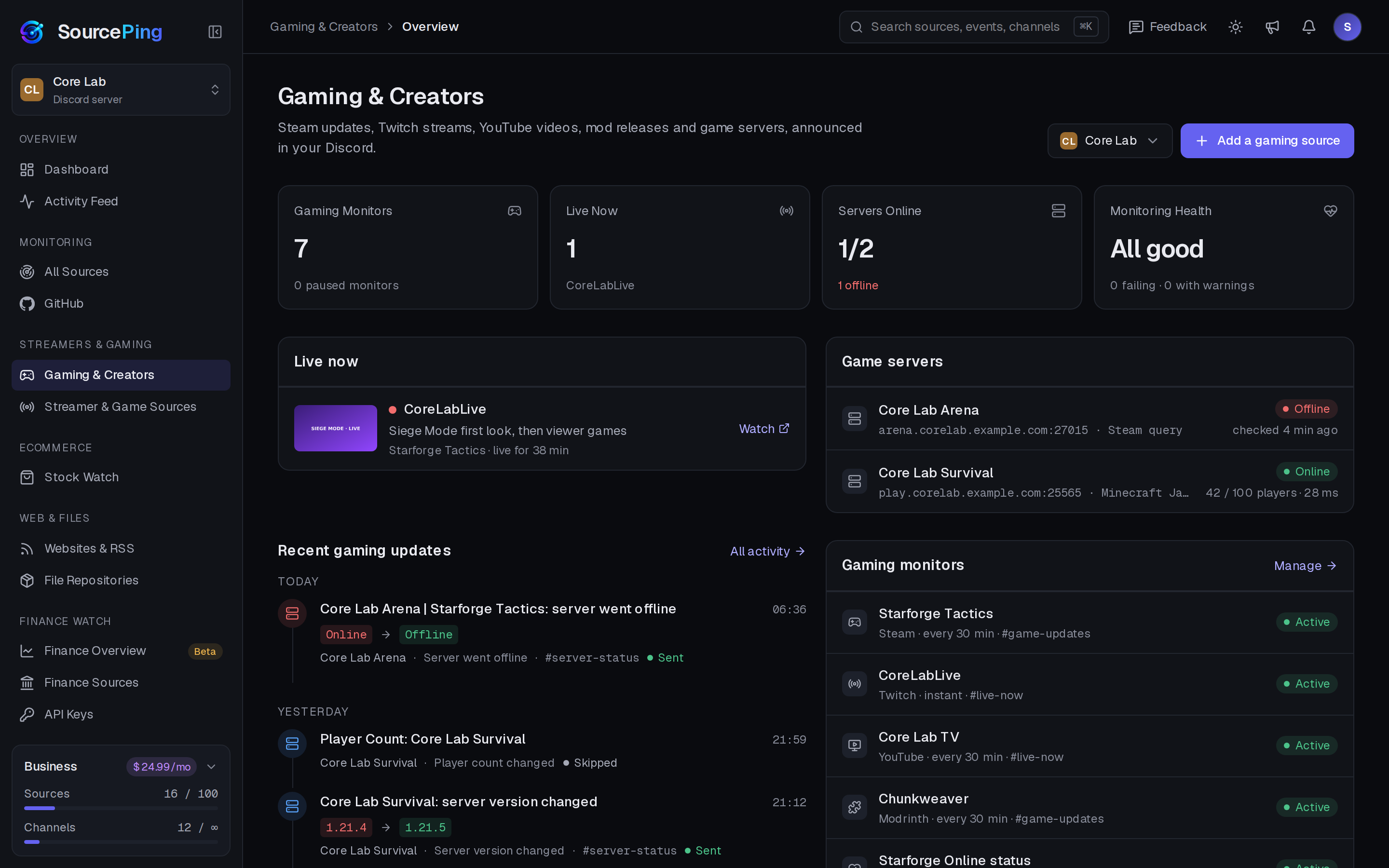
See who is live right now.
The Gaming & Creators overview shows which of your tracked streamers are live, with the stream title and how long they've been on.
How do I get Twitch live notifications in Discord?
Add SourcePing to your server, choose Twitch Live Watch in Add Monitor, paste the channel link and pick a channel and a role. The next time the streamer goes live, the alert is posted.
How quickly are go-live alerts posted?
SourcePing uses Twitch's own go-live notifications for the channel and also checks it every 10 minutes as a backup, so an alert isn't missed if a notification doesn't arrive.
Will a reconnect post a second alert?
No. If the stream comes back within 10 minutes, it counts as the same stream and isn't announced again.
Do I need to connect my Twitch account?
No. SourcePing only needs the channel link, and it works for any public Twitch channel.
How much does it cost?
Twitch and YouTube alerts are included in the Free plan. The rest of Gaming & Creators is included in Pro ($5.99 USD a month) and Business ($24.99 USD a month) at no extra cost, billed per server through Whop. Every Discord server starts with 14 days of Pro, then drops to the Free plan unless you upgrade. No card needed.
What permissions does the bot need in Discord?
View Channels, Send Messages, Embed Links and Read Message History in the channels you choose. It never reads what your members write.
Your next stream deserves an audience.
Add SourcePing to your server and set up your first go-live alert in under two minutes.